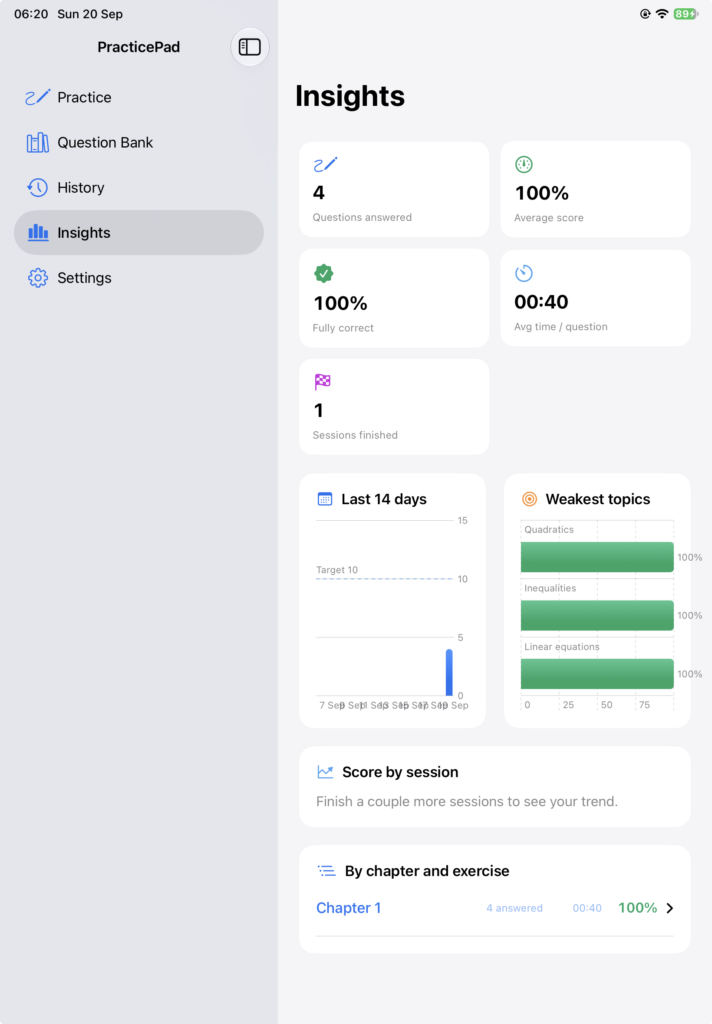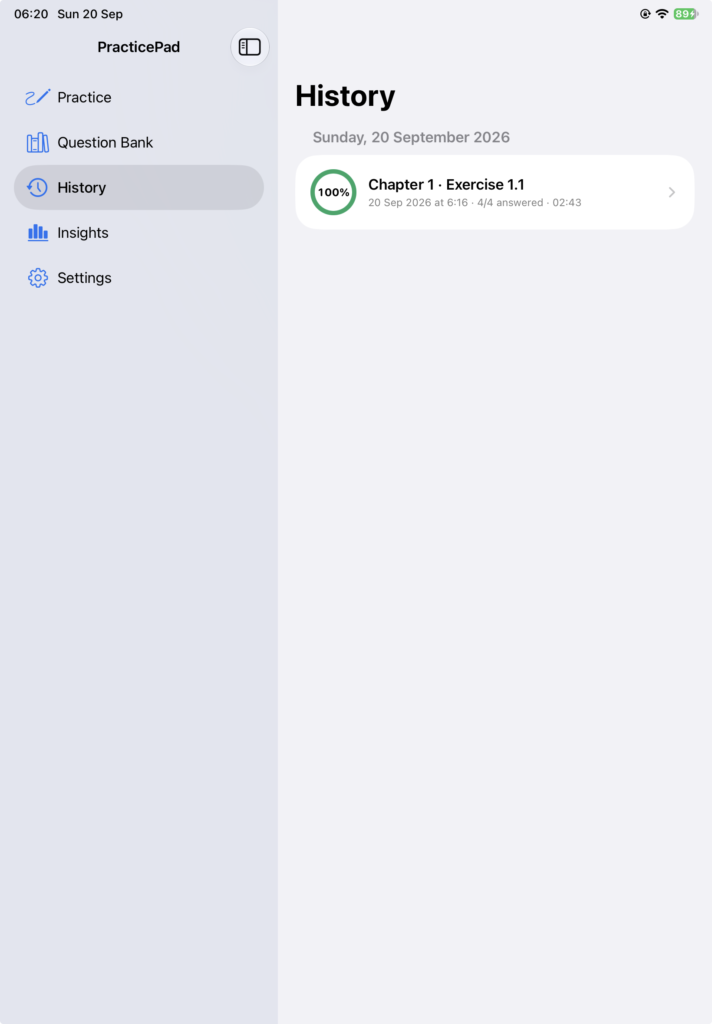
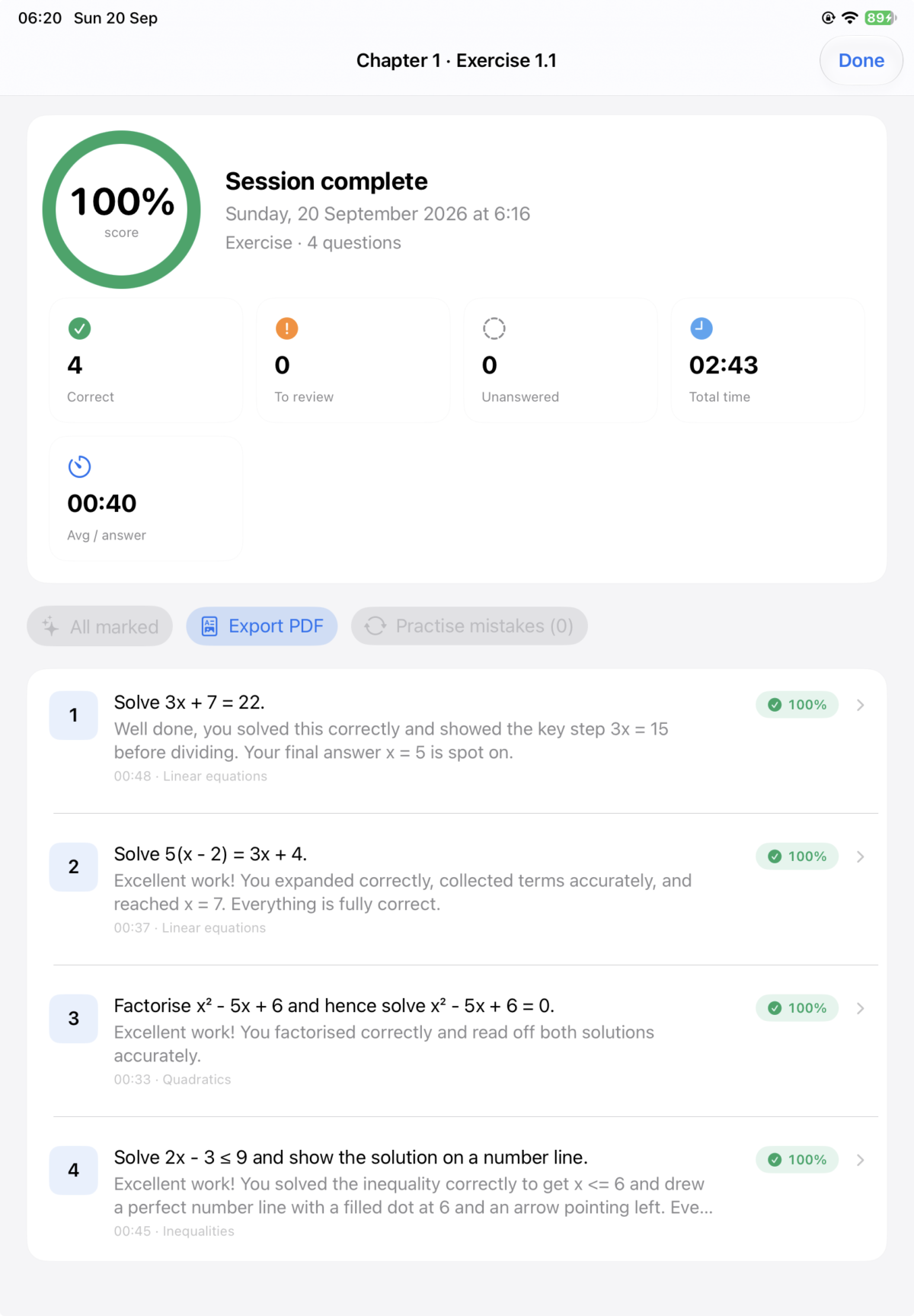
The Idea
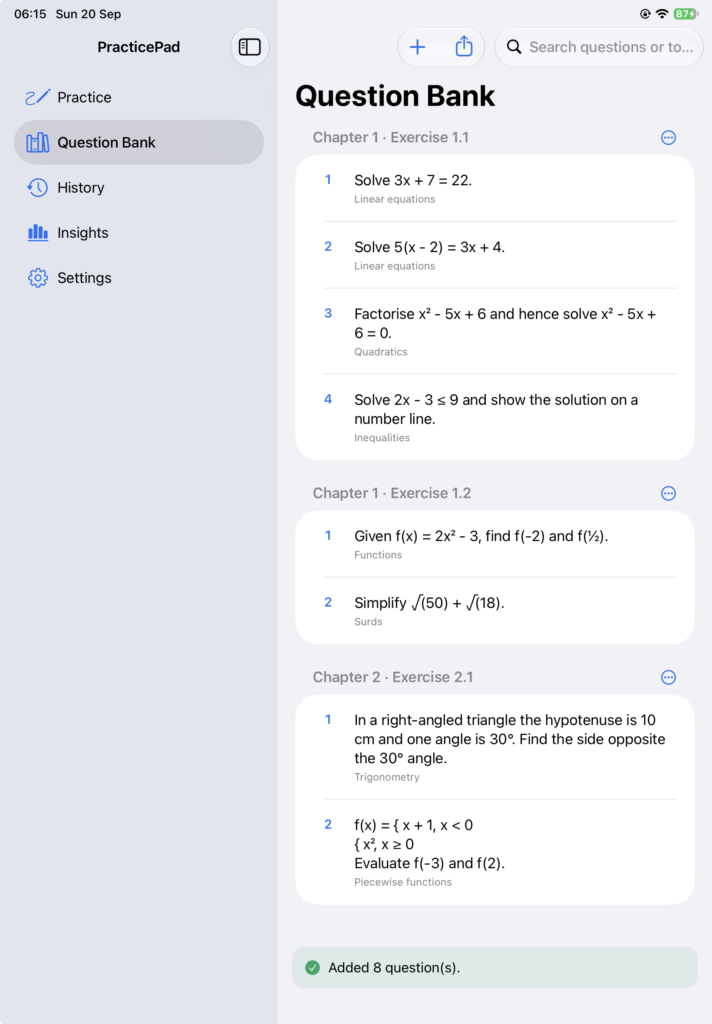
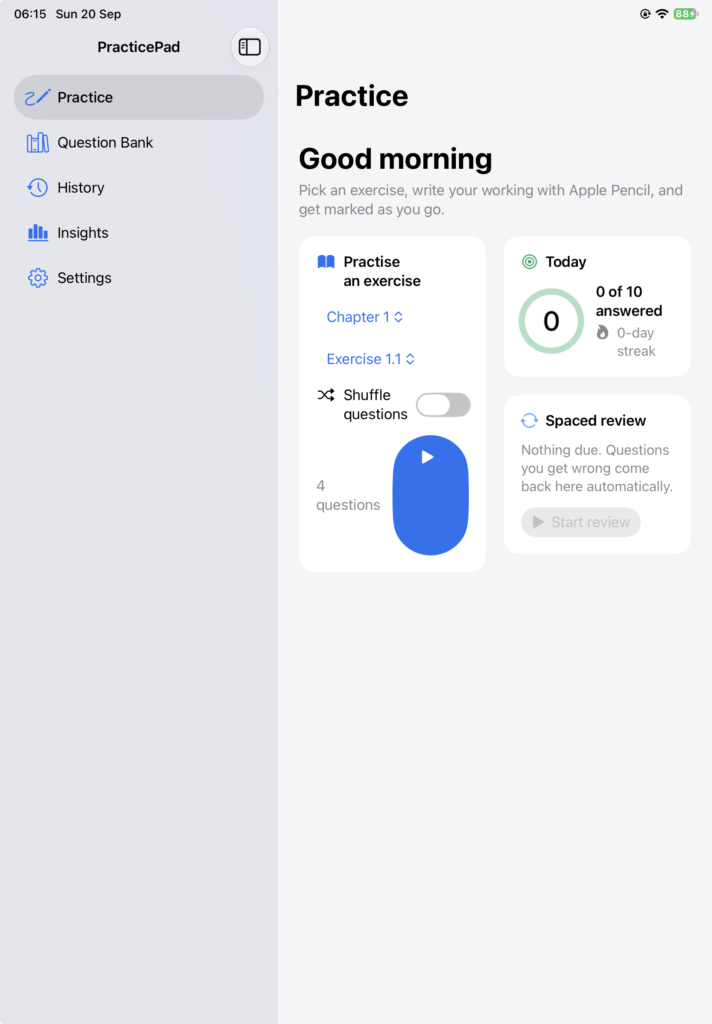
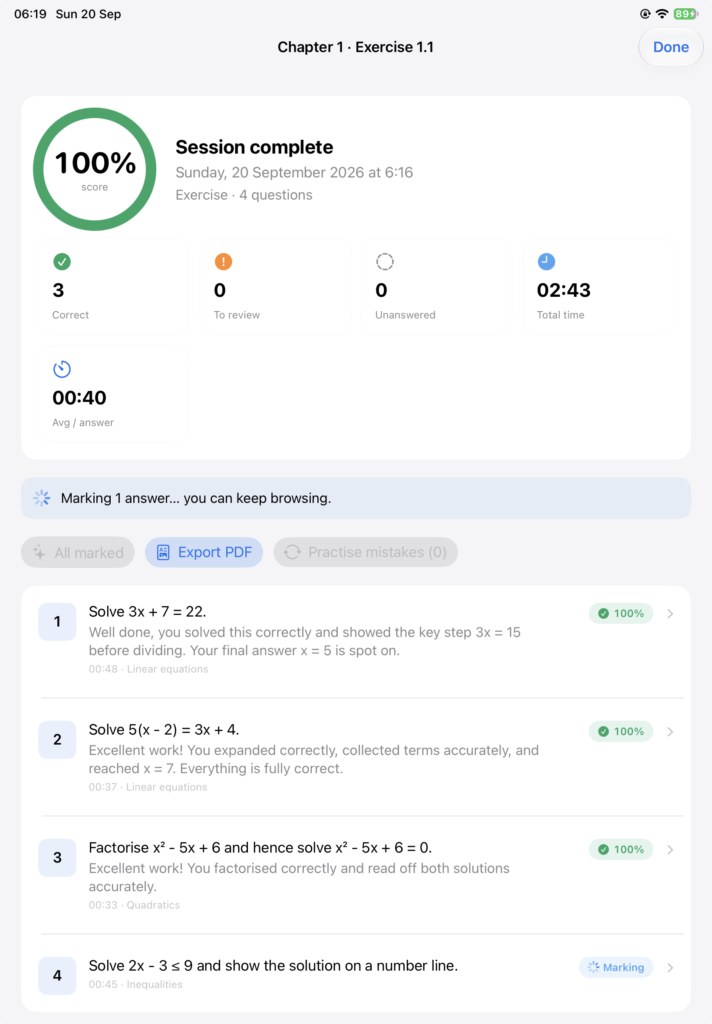
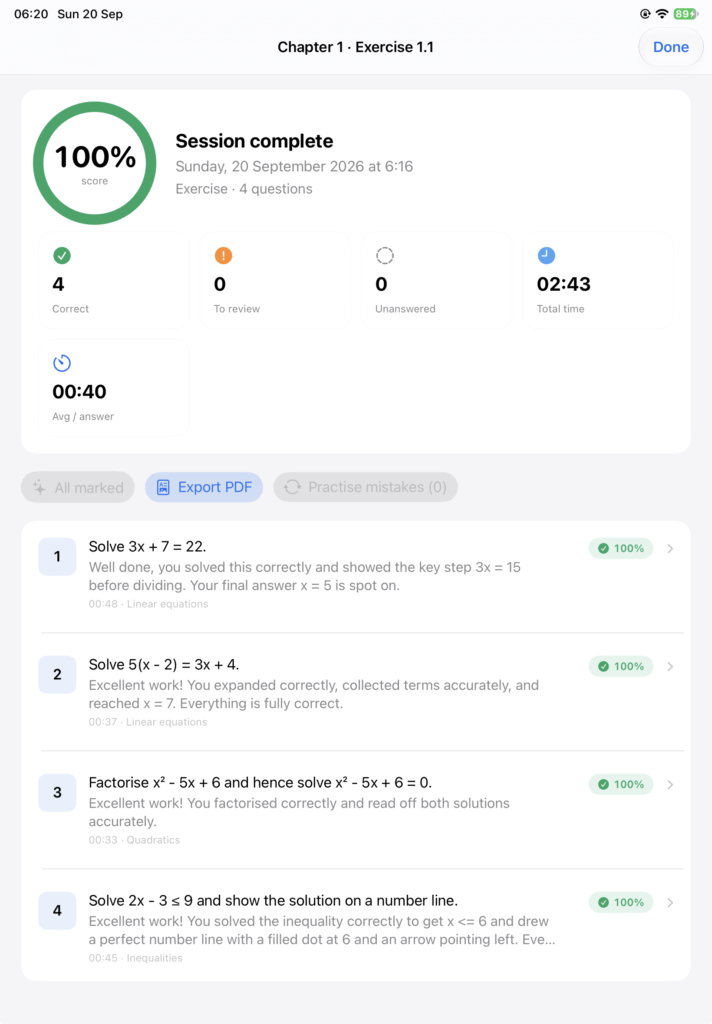
PracticePad is a simple idea. You load a set of maths questions, work through them on an iPad with an Apple Pencil, and get feedback on every answer. It keeps track of how long you spend on each question and how many you get right. It also saves every session so you can look back at your own working. The main improvement for this updated version is adding AI feedback for questions done.
I already had a version 3 that did most of this on paper. It imported questions, let you write answers, ran timers, asked AI to mark the answers, and exported a PDF. There were, however, a number of issues:
- Uploading questions could be a long tedious process
- specially when it came to questions which have graphs or other visuals
- After each session, the question bank would be reset to blank and upload had to be done again
- Exporting the question, answers and AI feedback would not always work as expected
- Questions were missing from the pdf exported.
- Using different colour pens was limited to a few colours only.
In a Cowork session, I asked Claude to act as the CTO of Practice App using known iOS app development frameworks to analyse the V4.0 and to bring improvements.
As a reminder, the original brief for the App was:
- Import questions – whether in pdf, image or JSON file
- Categorise the questions by chapters and exercises. E.g. Chapter 4 Exercise 1.2
- Allow users to do practice sessions – the user see one question at a time and insert the answers.
- Once the session is done, the app uploads the questions and answers to AI which provide feedback and marks the questions.
- Export the questions, answers and feedback in the form of a PDF which can be saved as a file, sent by email or other communication means.
- The App keeps track of the number of sessions completed along with a number of metrics. E.g. time per question, weak areas which require more practice, etc…
Step 1: Review of Version 4
| Finding | Why it mattered |
| Imported questions lived only in memory | Every time the app was relaunched, the whole question bank disappeared |
| Each new import replaced the whole question bank | Importing chapter 2 wiped out chapter 1 |
| Sessions were only saved by the “Export PDF” button | Closing a session lost all work if not saved. An AI call failure also lost all work. |
| Metrics were not accurate | The app counted number of clicks on the button “Next”. Did not count incorrect questions correctly. Therefore percentage of correct questions / total questions was inaccurate. |
| Crash risks | An error in text recognition could trigger a callback twice which crashes the app. |
| The API was stored in plain text | The API was kept in the app settings which could be seen by any user. |
| Slow AI marking | The AI marked one question at a time and one question could take up to 90 seconds. |
Step 2 : Coding
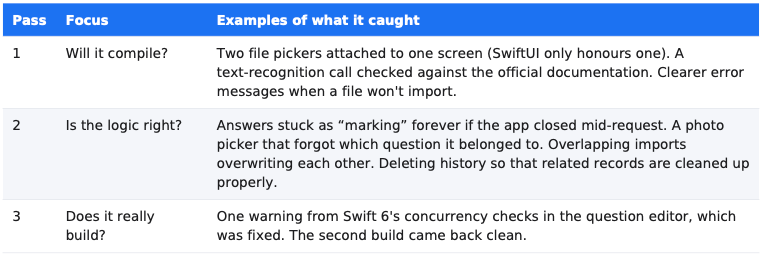
The instructions were to write the codes using conventional app development frameworks and to review the codes three times for bugs. The app for now is only for Apple frameworks (SwiftUI, SwiftData, PencilKit, PDFKit, SwiftCharts, PhotosUI and the Keychain). Do not overwrite the previous Xcode file but rather create a new Xcode file leaving the previous version as backup and legacy. Claude wrote 35 Swift files – about 5,100 lines.
Changes made:
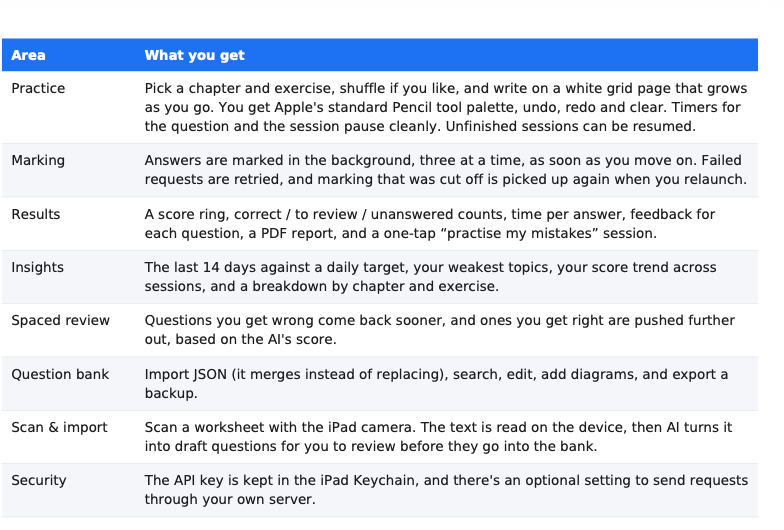
The three code reviews were as follows :
Step 3: Compiling codes
- Claude copied the finished project in the assigned folder
- Opened the project into XCode
- Ran the project in Xcode and built it for the iPad simulator. Any errors were fixed and in the second build, no errors showed up.
- Claude launched the app in the simulator.
A few advice
For anyone who is working on similar projects, here are a few learnings
- Ask any AI you use for a review before starting to code. Ask AI to create a plan – review the plan. Then ask AI to create a more detailed plan and review that. Once the plan is according to what you want, then go onto the coding part.
- Build incrementally and keep backups. Do not try to create all the tools at once in the App. Built the simplest one first then move up incrementally according to complexity. Use the App and see if it fulfils the objectives.
- Build with the end user in mind. Think of the user and how they will use it and if tasks can be made easier – less hurdles.
- Test, test & test. Build the app on a device and test it as much as possible noting the bugs and improvements.